Usage
Everything happens in your Telegram chat with your bot. It is button-first: you tap, you rarely type.
Commands
Open the menu button next to the message box to see these, or type them.
| Command | What it does |
|---|---|
/list |
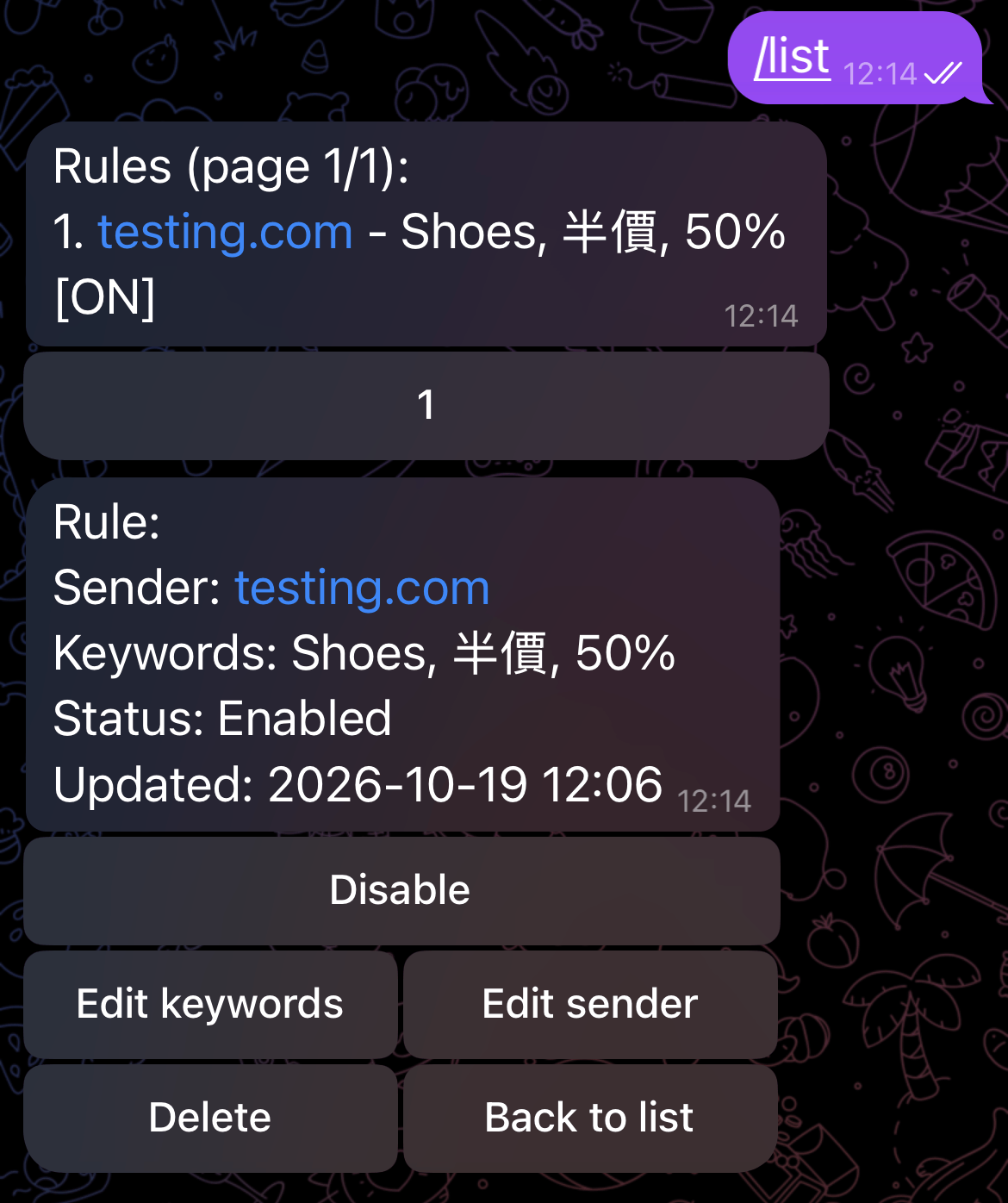
Show your rules, 10 per page. Tap a rule to enable, disable, edit, or delete it. |
/add |
Add a rule: sender, then keywords, then confirm. |
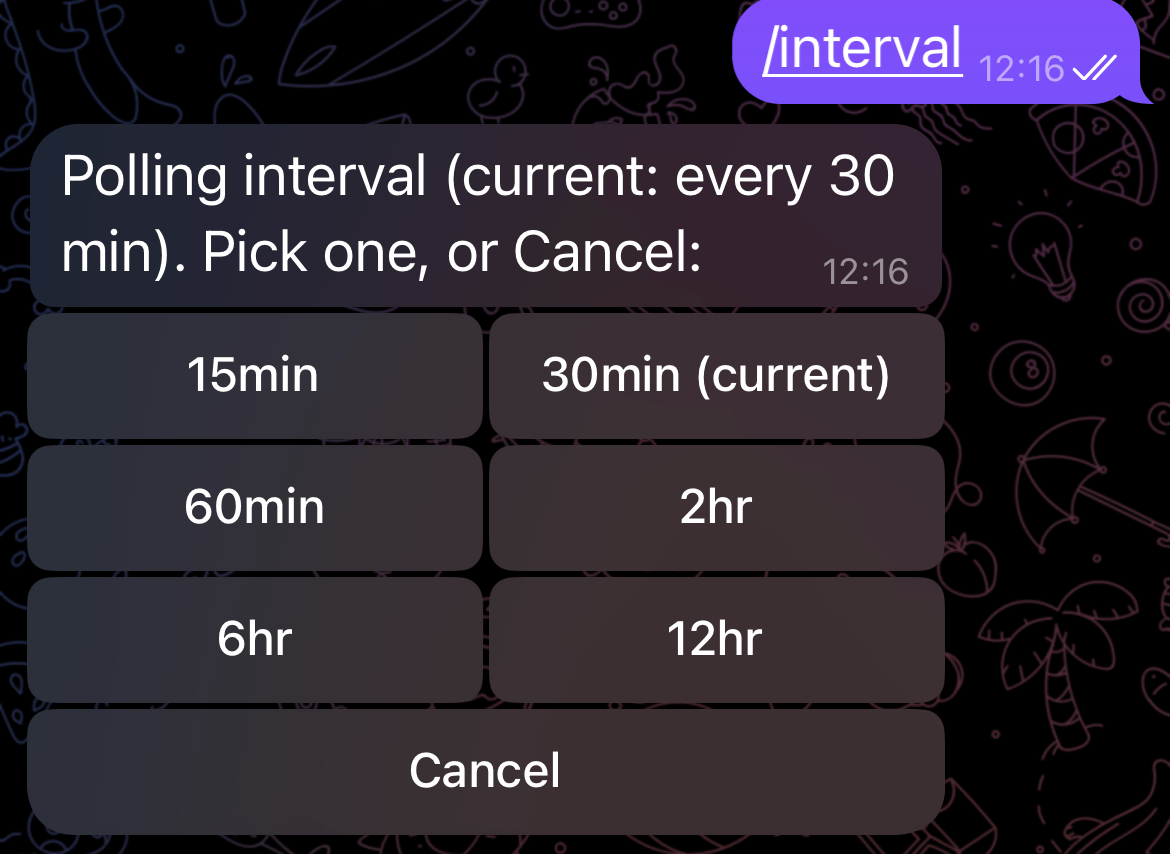
/interval |
Change how often Gmail is checked. |
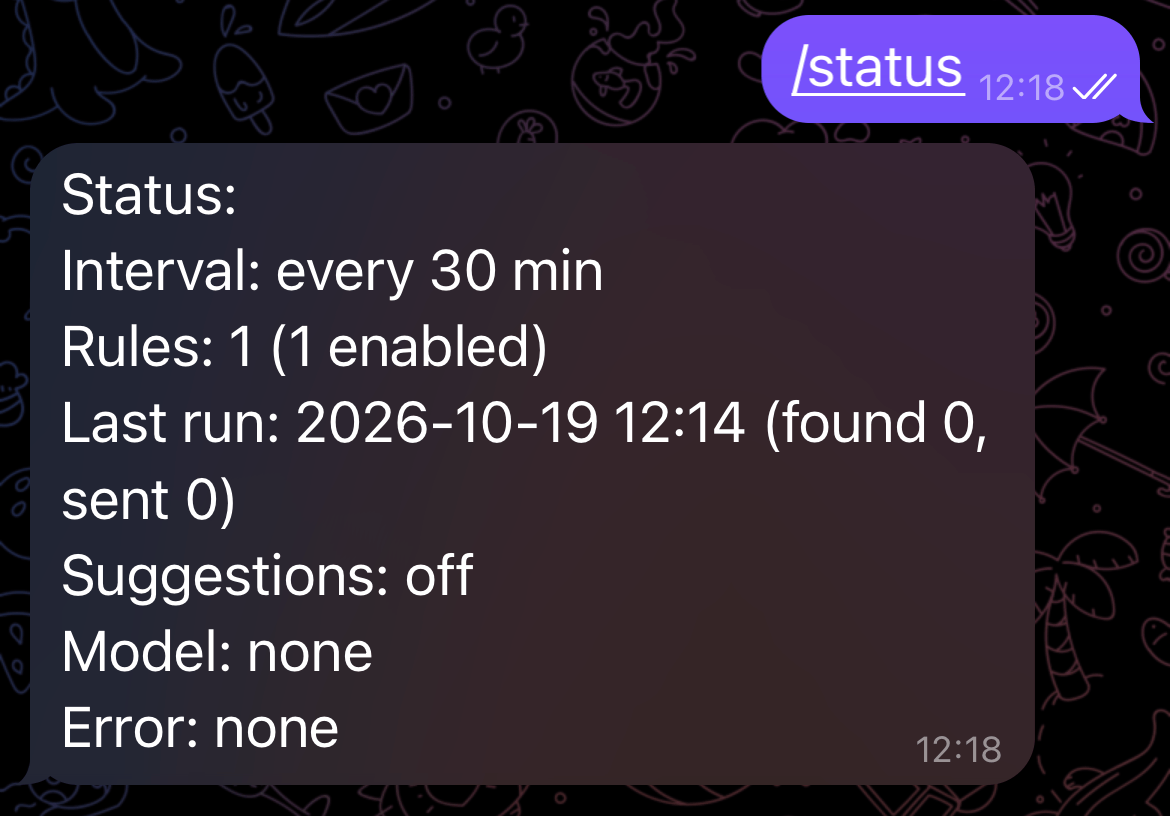
/status |
Show the interval, rule count, last check, and last error. |
/help |
Show the command list. |
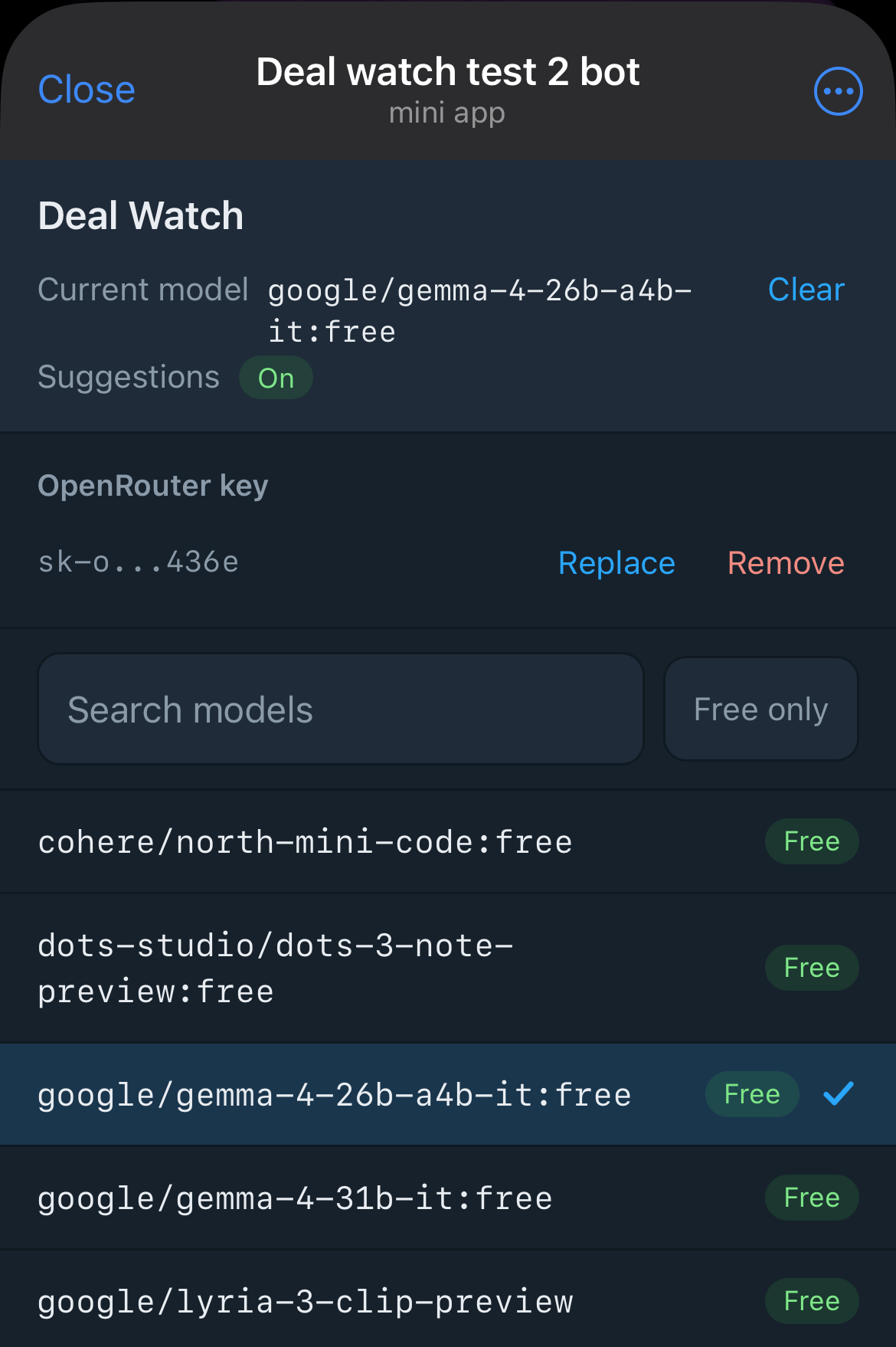
/setai |
Open Settings for the optional keyword-idea helper (OpenRouter key and model). |
/transfer |
Move the watcher to the Telegram account you are sending from. |
/connect |
Replace the bot token after you generate a new one in BotFather. |
/start <token> |
Bind your Telegram account. One-time, from the Setup link. |
/cancel |
Abort the current step of a multi-step flow. |
Adding a rule
A rule is one sender plus a set of keywords. /add asks for them one at a time.
- Send
/add, then send the sender. - Send the keywords, comma-separated.
- Confirm. The rule is created, enabled, and starts matching on the next check.
On the keywords step you may also see a [Use last keywords] button that copies the keywords from your most recent rule, and a [Need ideas?] button if the idea helper is set up.
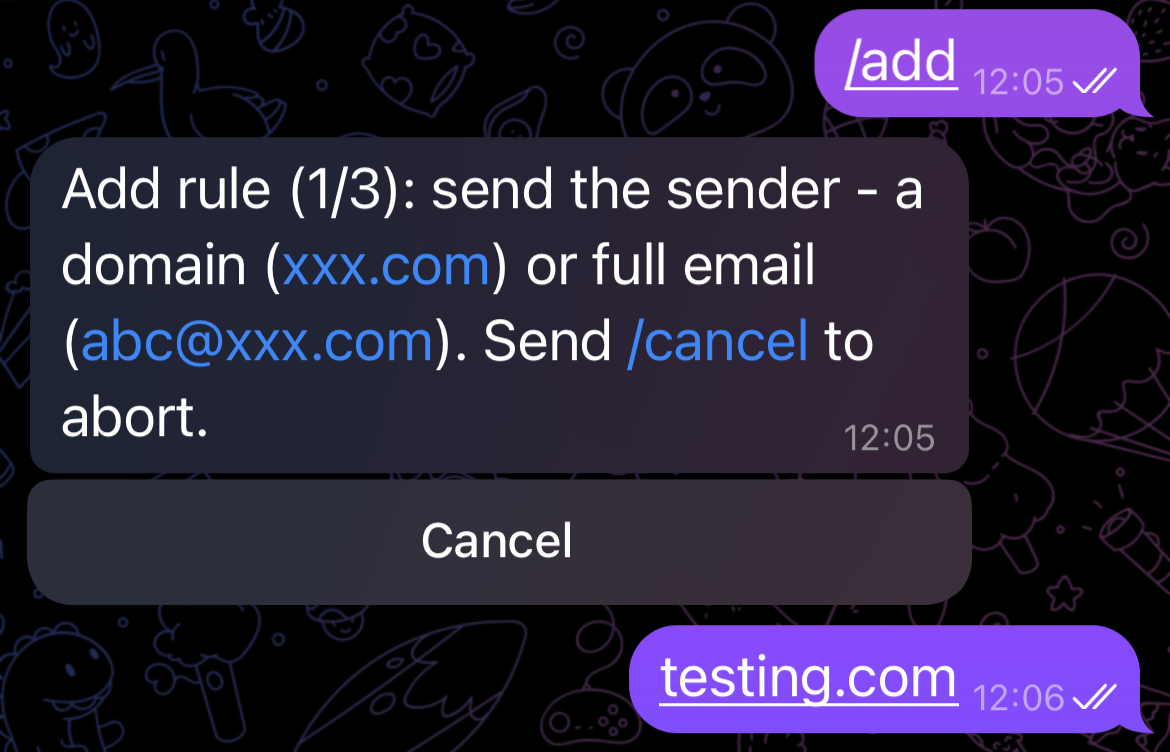
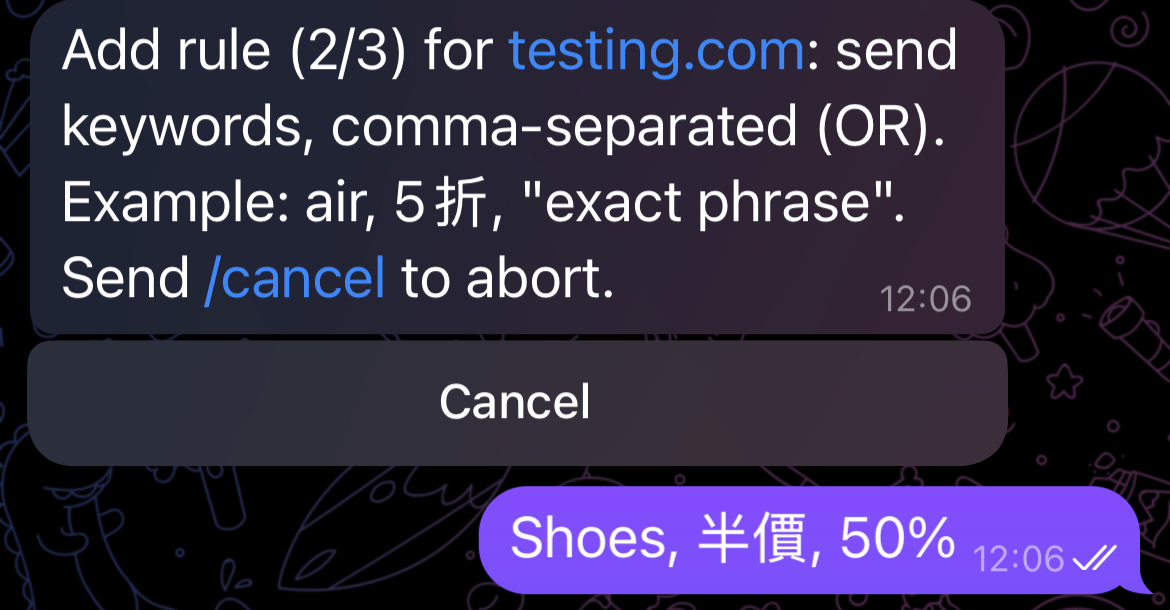
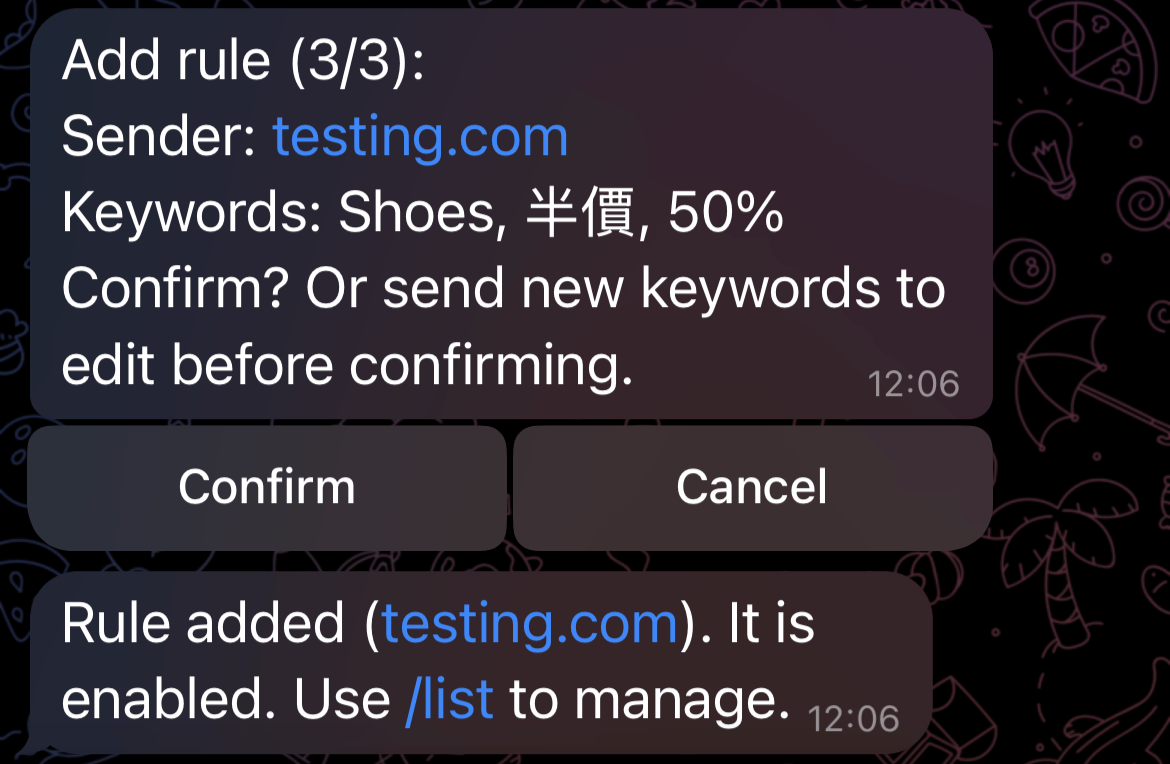
/cancel.Senders
- A domain such as
xxx.commatches any address at that domain. - A full email such as
abc@xxx.commatches only that address. - A
+tagis ignored, so mail toabc+sale@xxx.commatchesabc@xxx.com. - Matching is case-insensitive.
Keywords
- Comma-separated keyword means OR.
air, 5折, salematches any one of them. - Quotes match an exact phrase:
"free shipping". - Case is ignored, and full-width and half-width characters are treated the same.
- A keyword matches if it appears anywhere in the email body. The subject is shown, but matching uses the body.
Limits
- Up to 30 enabled rules.
/listshows 10 rules per page.- Adding a sender that already has a rule opens that rule for editing instead of creating a duplicate.
Check interval
Use /interval and pick from the buttons. The options are 15, 30, and 60 minutes, then 2, 6, and 12
hours. The default is 15 minutes.
Status and errors
/status shows the interval, how many rules you have, your version, when the last check ran, and the
last error if there was one.
- If a check finds nothing, you get no message.
- If a send fails, the error is included in your next digest so you are not left guessing.
- After three consecutive send failures, retries pause until a send succeeds again.
The digest
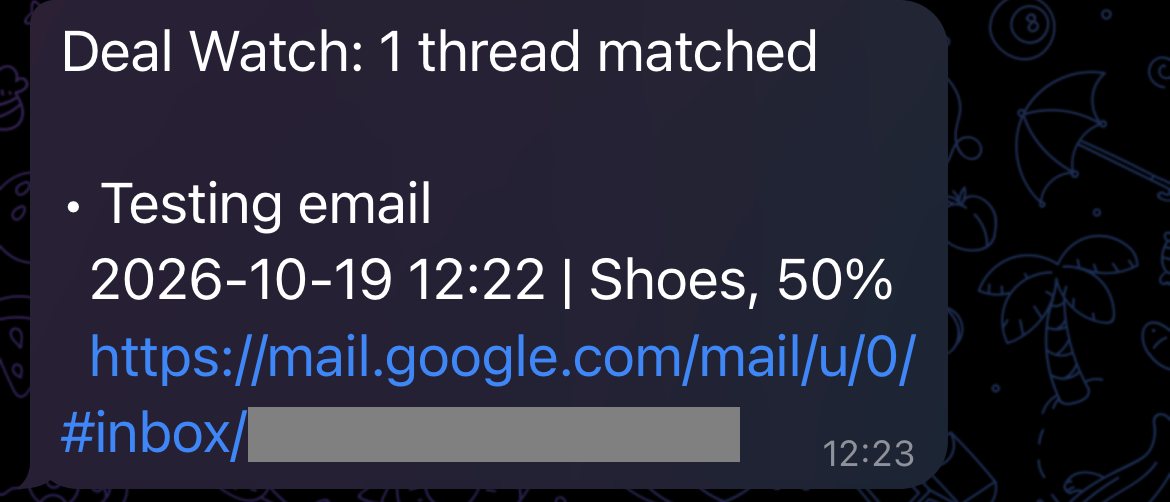
You get one message per check. Each email thread appears once, with the subject, the date, a link straight to the thread, and the keywords that matched.
- There are no caps and no quiet hours. Mute your phone if you want a break.
- Threads with nothing matched are not listed, and a check with no matches sends nothing.
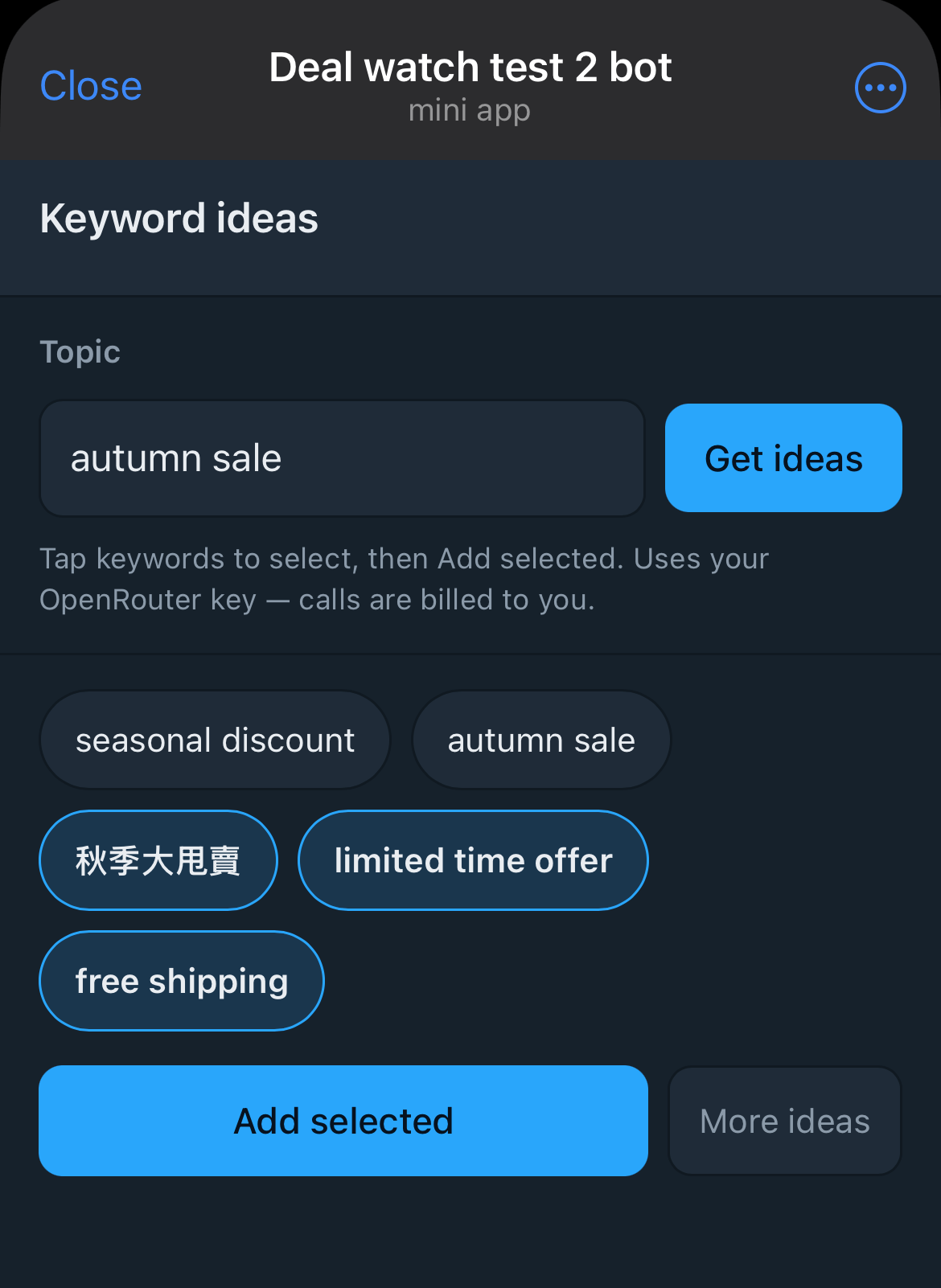
Keyword ideas (optional)
Deal Watch can suggest keywords using OpenRouter, an AI provider. This is off until you set it up, and calls are billed to your own OpenRouter account.
- Send
/setaito open Settings. - Enter your OpenRouter API key and pick a model. The key is shown masked and can be deleted at any time.
- While adding or editing a rule, tap [Need ideas?], type a topic, and tap the keywords you want. They are handed back to the chat for you to confirm.
Suggestions only ever use the topic you type. They never read your email, and they never change your rules on their own.
Maintenance
- New phone: nothing to do. Notifications follow your Telegram account.
- New Telegram account: send
/transferfrom the new account and confirm. - New bot token: generate one in BotFather, then send
/connectand paste it. The message is deleted right after. - Your rules and history survive all of the above, because they live in your Sheet, not in Telegram.
Updating
Deal Watch does not update itself. Each copy is yours alone, so newer code never reaches you automatically. When
a newer release exists, you will see an update notice on your next digest and in /status.
To update, replace the code in your own copy:
- Open your Sheet, then Extensions > Apps Script.
- Replace
Code.gsandMiniApp.htmlwith the latest versions from the GitHub repository, then click Save. - Deploy the change: Deploy > Manage deployments, edit the active deployment, set Version to New version, then click Deploy.
- If the update asked for new permissions, run Deal Watch > Setup once and approve them.
Making a fresh copy would give you a new, empty Sheet and you would lose your rules, history, and settings. Update the code only, as above.
To hear about new releases, open the repository and choose Watch > Custom > Releases. The full list of changes is in the changelog.
See the FAQ.