Setup
About 15 minutes. You will create a Telegram bot, copy the Google Sheet template, deploy the Web App, and bind your Telegram account.
- A Google account with Gmail.
- Your Telegram account.
- The browser you will use for the Google steps (desktop is easiest).
You will do everything else inside your own account.
1. Create your bot in BotFather
BotFather is Telegram's official bot for creating bots.
- In Telegram, search for @BotFather and open it.
- Send the
/startcommand. Then the/newbotcommand. - Give the bot a name, then a username. The username must end in
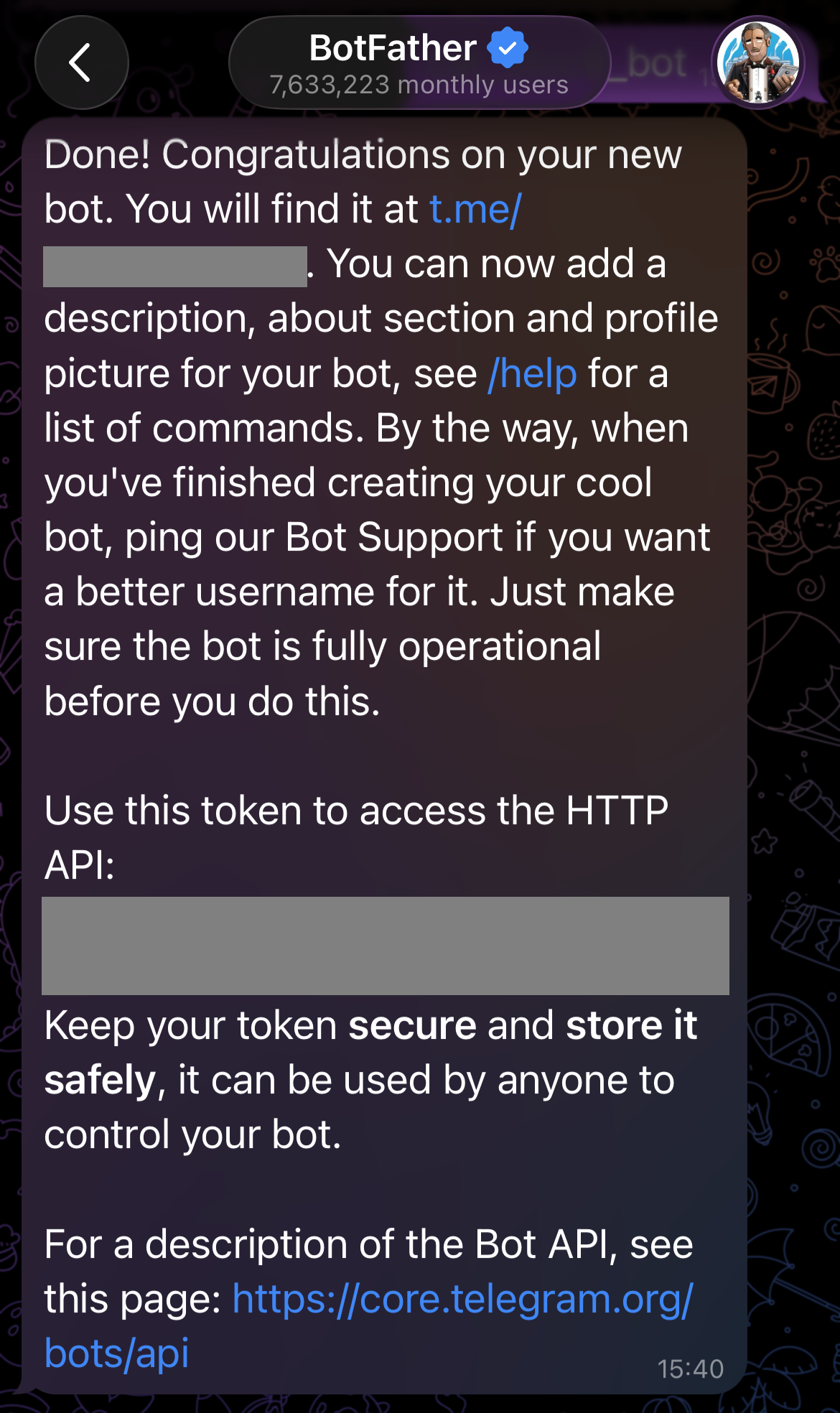
bot, for examplemy_deal_watch_bot. - BotFather replies with an HTTP API token. Copy it and keep it private — it is the key to your bot.
2. Copy the Sheet template
Open the template in Google Sheets and make your own copy. Everything runs from this copy, in your own Google account.
- Open the Deal Watch template in Google Sheets.
- In the Sheet, choose File > Make a copy, then save it to your own Google Drive.
- Open your copy. It is a normal Google Sheet, with Deal Watch attached to it.
You do not need edit access to the template — just make a copy.
3. Deploy the Web App
Telegram needs a public URL to send your button taps to. You create that once, from the Sheet's script editor.
- In your copied Sheet, open Extensions > Apps Script.
- Click Deploy > New deployment.
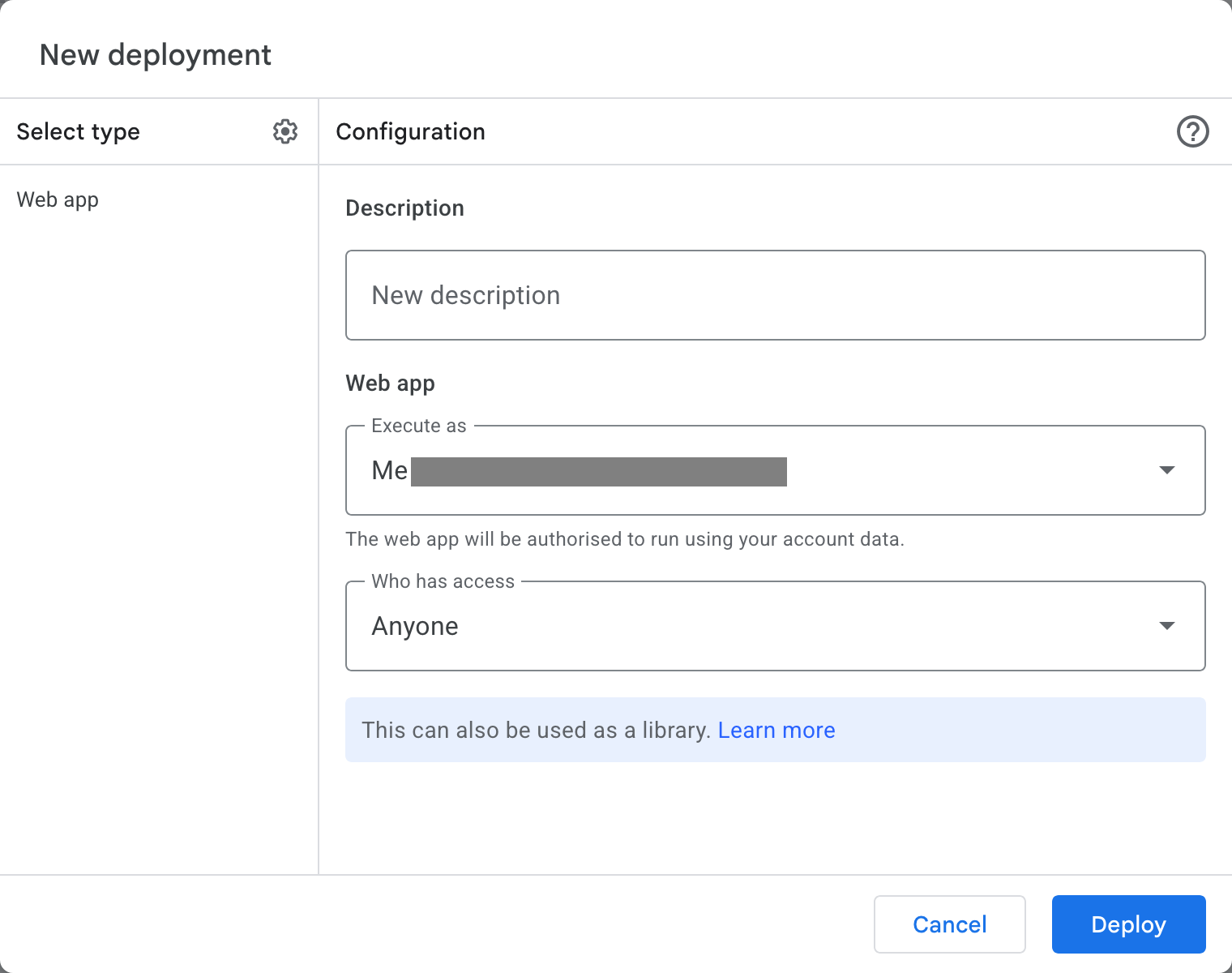
- Click the gear next to "Select type" and choose Web app.
- Set Execute as to Me.
- Set Who has access to Anyone.
- Click Deploy.
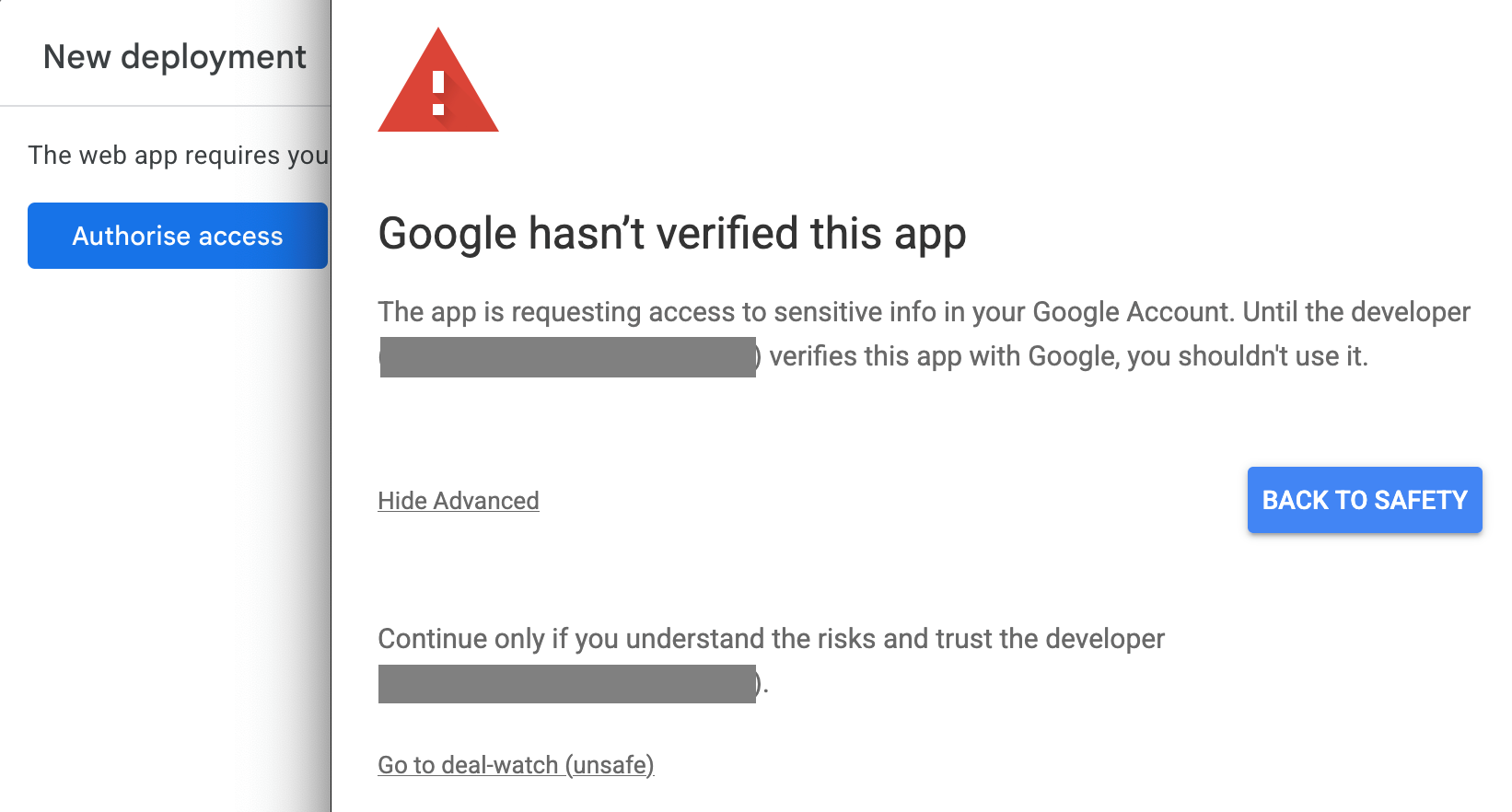
- Click Advanced
- Go to (your project name) (unsafe)
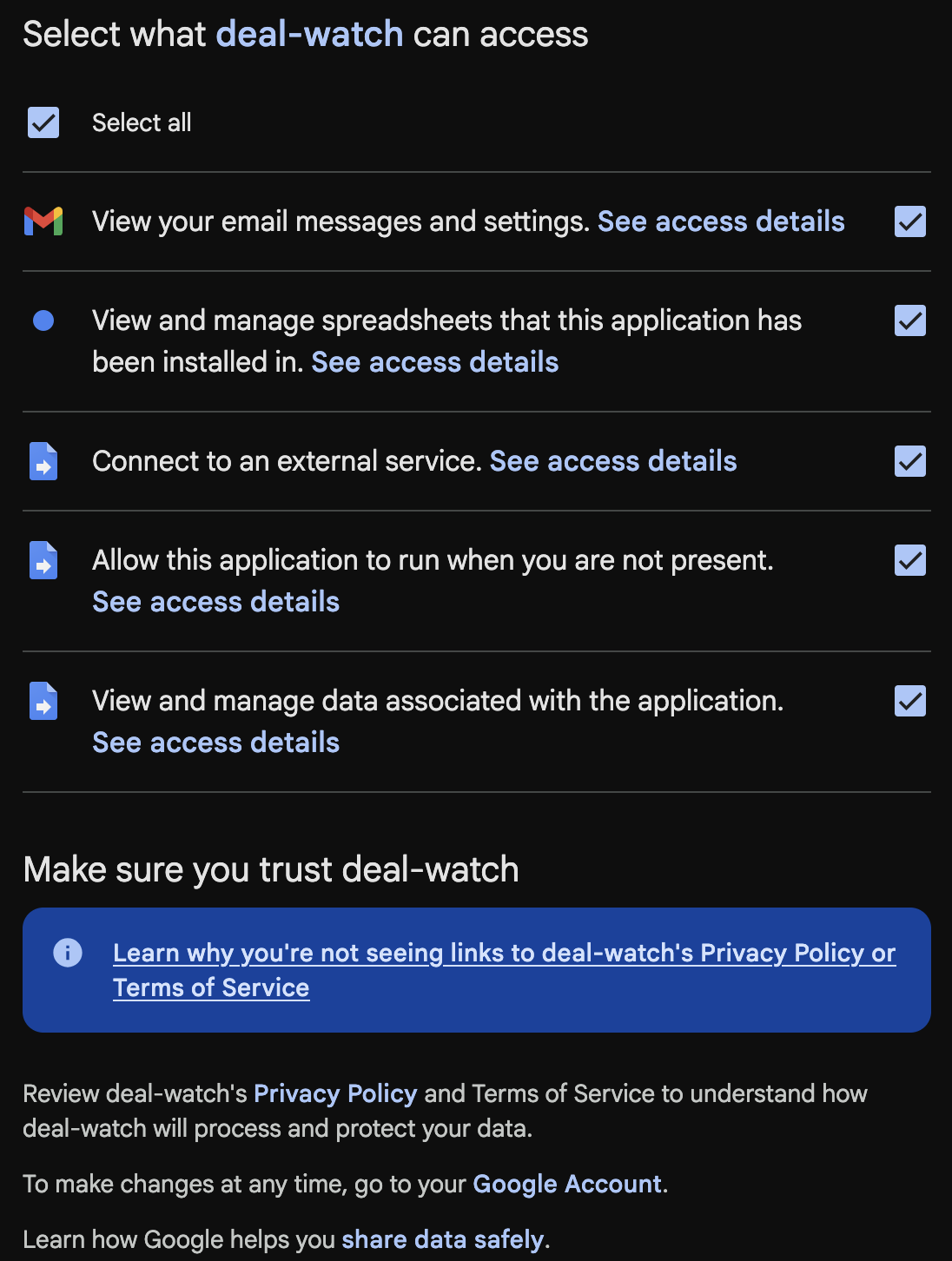
- Select all permission
- Click Continue
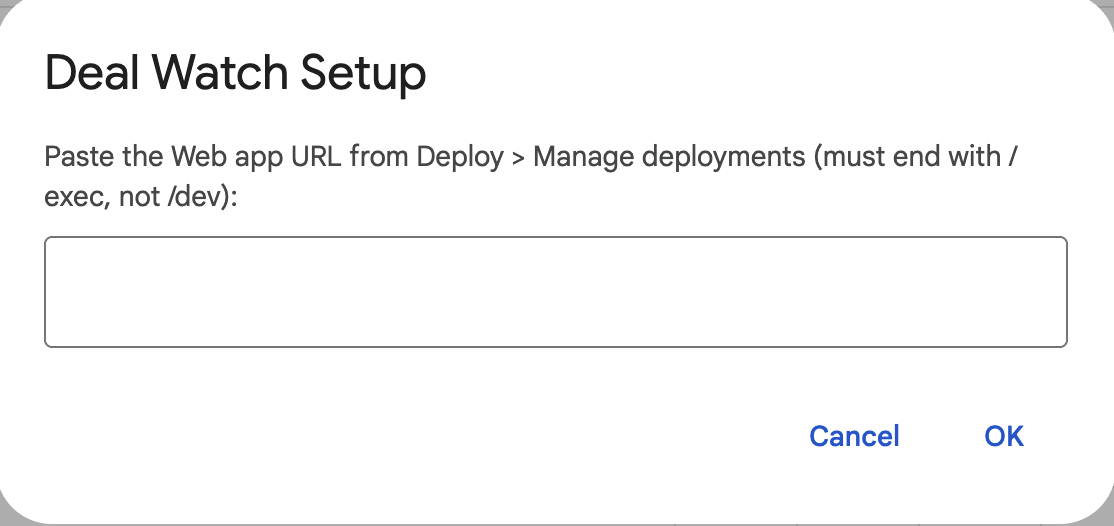
- Copy the Web app URL. It must end with
/exec, not/dev.
This warning is expected. It appears because the script is your own private copy, not an app published to the Google Store. To continue:
You are granting your own script access to your own Gmail and Sheet.
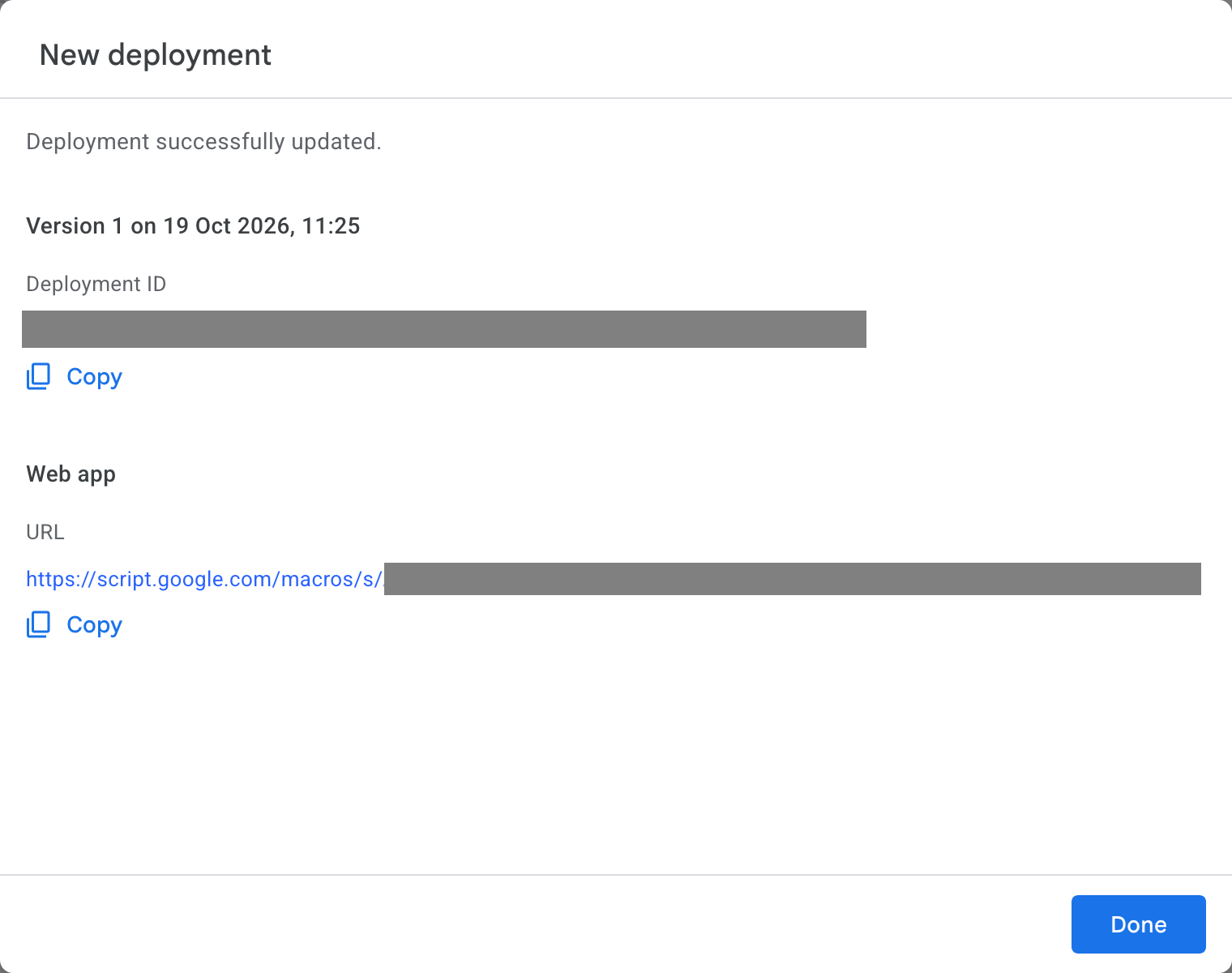
/exec. The /dev URL will not work with
Telegram.4. Run Deal Watch > Setup
Back in your Sheet, the Deal Watch menu appears at the top. If you do not see it, reload the Sheet.
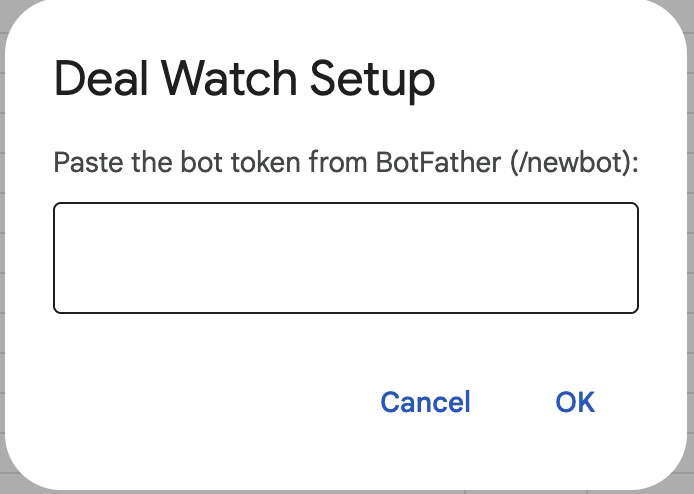
- Click Deal Watch > Setup.
- When prompted, paste your bot token from Step 1.
- When prompted again, paste your Web app URL from Step 3.

5. Bind your Telegram account
When Setup finishes, it shows a one-time link. This is the final step, and the only part done in Telegram.
- Open the link Setup shows, or send the suggested
/start <token>message to your bot. - Your bot replies to confirm. From now on it listens only to your Telegram account.
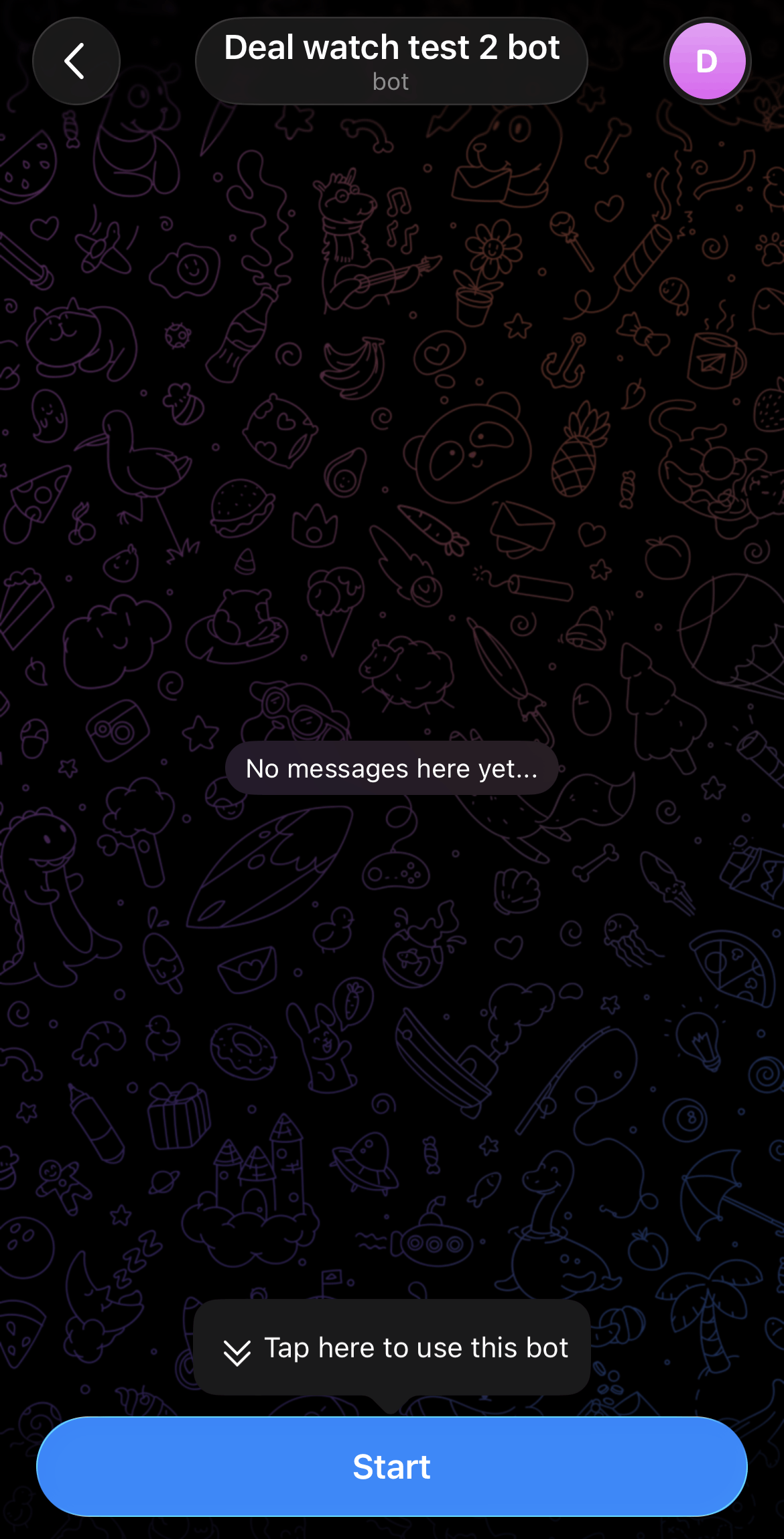
/start <token> to your bot.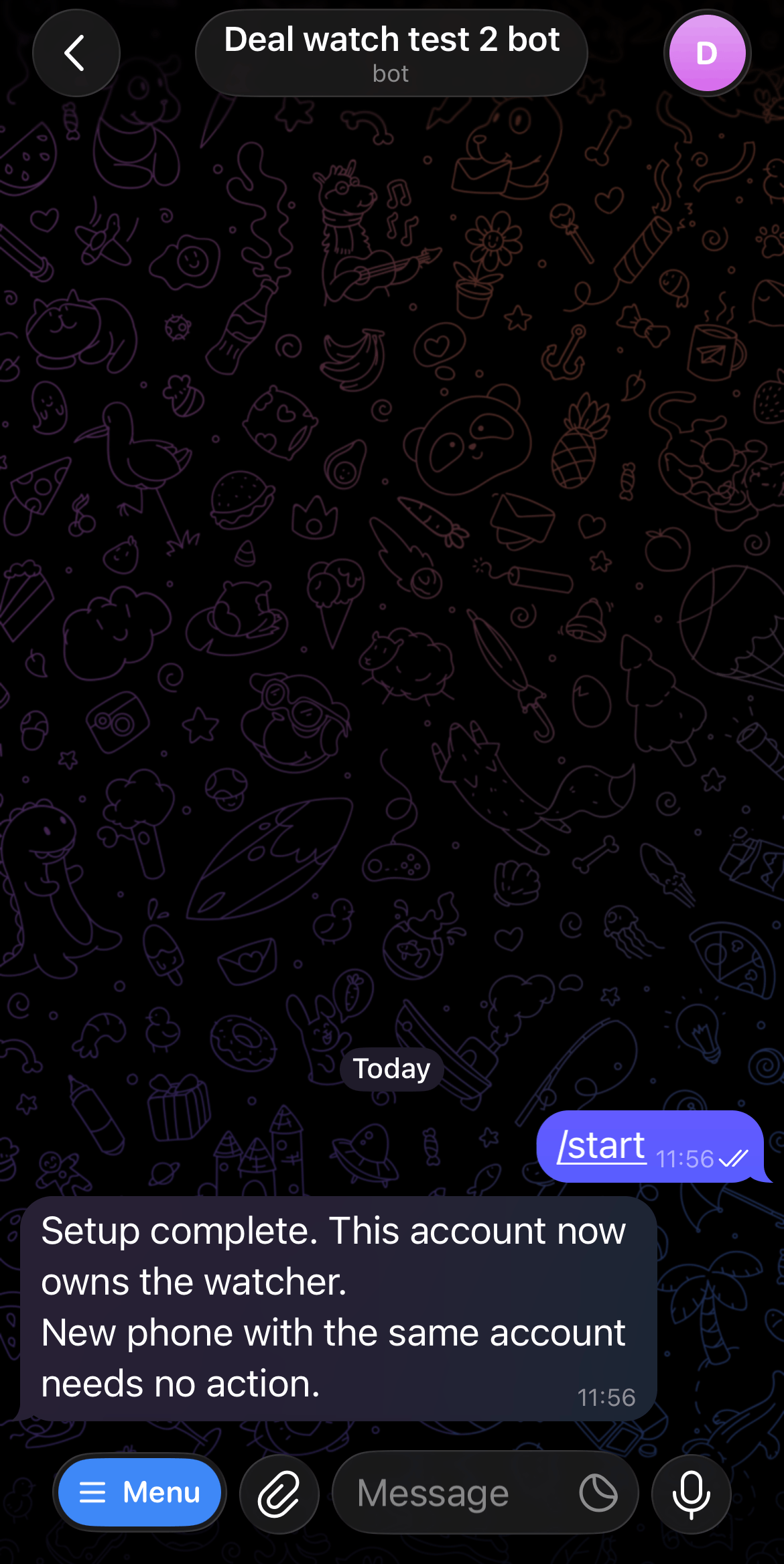
6. Test it
- Send
/addto your bot and add a rule for a sender you control (or a sender that emails you often). - Send a test email to yourself from that sender containing one of your keywords.
- Wait for the next check. The default interval is 15 minutes.
- You should receive one digest message. Nothing to report means no message.
See Usage for the full command list and everyday tips.
Running Setup again
Setup is safe to re-run:
- Before you are bound, re-running Deal Watch > Setup shows the same bind link. No new link is created.
- After you are bound, re-running Deal Watch > Setup reports "Already set up" and changes nothing. Your rules and history are kept.
- New Telegram account: use
/transferin the chat. New bot token: use/connect.
To move to a newer release of the code, see Updating in Usage.
See the FAQ for the common setup problems and what they mean.